
Seller User Guide
Video Guide
Video 1 guides you through setting up your delivery method, region/state, delivery cost, withdrawals, and other essential settings. Video 2 shows you how to get and use your personal store link for marketing and promotions. Click the “Play Video” button to watch, or download each video to your device for offline viewing. If you’re watching on your phone, open the video in your browser and switch to full screen for a better viewing experience. You can also follow the written guide below if you prefer.
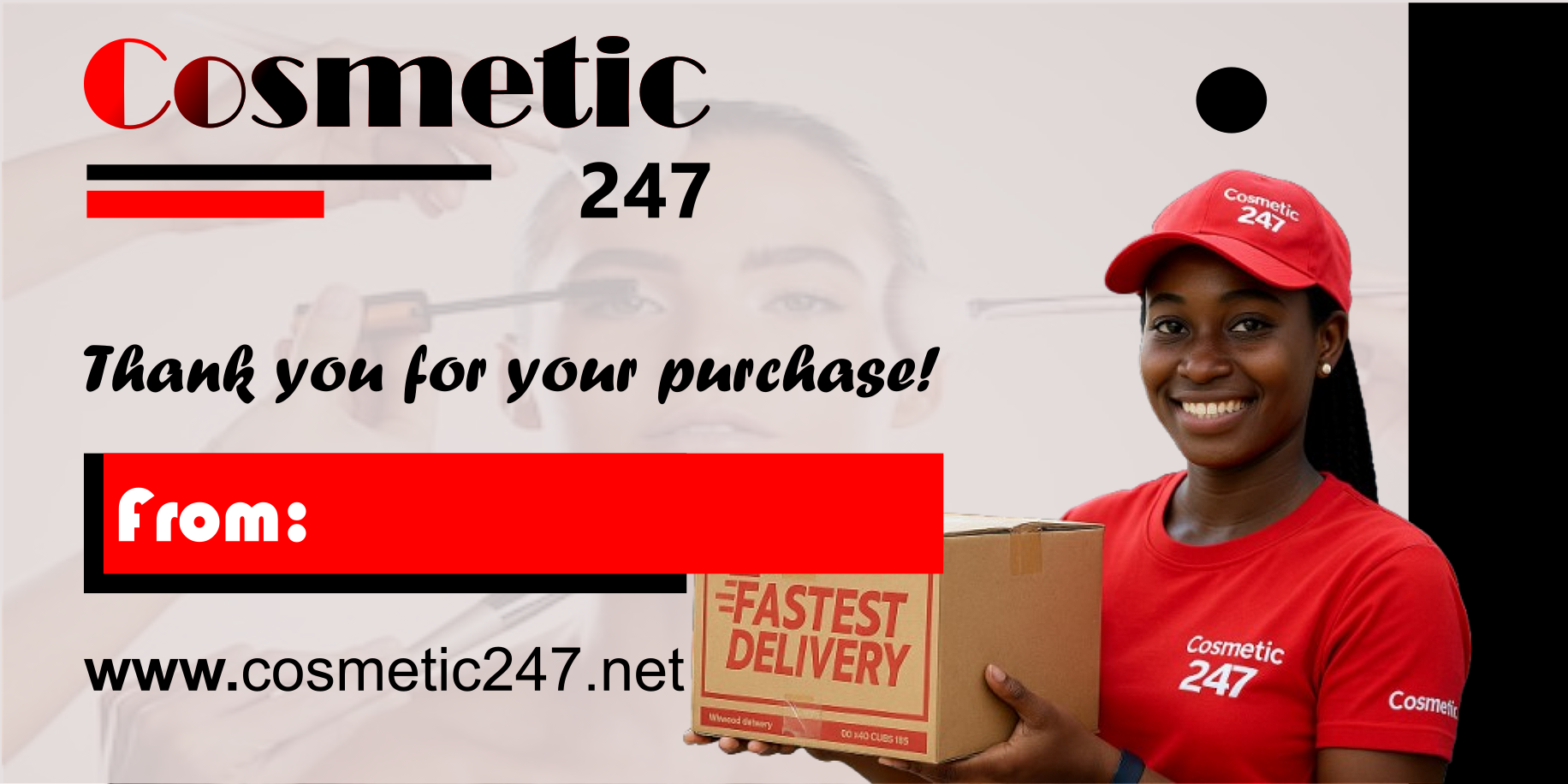
Sticker Design
Download the sticker design and take it to a printing shop. Ask them to replace the “From” text with your store name (for example: From: Mega Cosmetics). They should arrange the design on A1, A2, or A3 sticker paper so you can cut the stickers yourself after printing—this helps reduce printing costs. Click “Download Sticker” to get the design.
To set up your vendor profile:
- Go to Settings → Store.
- Upload your banner, logo, or profile photo, then enter your seller/brand (store) name.
- Fill out all required fields and click Update Settings to save your profile.
📱 On mobile: Tap the menu icon (☰) in the top-right to access navigation.
Choose Your Delivery Method
Plan how you will deliver orders:
- For other regions/states: use interstate or regional bus terminals.
- For same-state deliveries: use taxi station pickup or dispatch riders.
Proper planning ensures smooth and timely delivery.
To Add a Delivery Method and Cost
- Click Settings in the menu. (On mobile, reopen the menu after the page loads.)
- Select Shipping and scroll to your list of regions/states.
- Click EDIT beside the region/state you want to update.
- Scroll down and click ADD SHIPPING METHOD.
- A pop-up will appear. Select Flat Rate, then click Add Method.
- After it loads, you will see all Flat Rate fields. Click EDIT beside each to rename it.
- 📱 On mobile, rotate to landscape mode for easier editing.
- In Method Title, rename the method (examples below):
- Bus Terminal Pickup
- Taxi Station Pickup
- Dispatch Rider Delivery
- Post Office Pickup
- Enter your delivery cost for one item.
- The system automatically increases delivery cost by 30% for each additional item.
- Click SAVE METHOD.
Repeat for each region or state where you want to sell and deliver. You can also add multiple delivery options per location.
📝 Note: Add delivery methods one at a time.
- Click Add Product in the top menu.
- Choose Single Product or Variation Product.
- Fill in all product details (name, price, image, stock, etc.) and click Submit Product.
Your product will be reviewed and approved shortly.
💡 Repeat the process to add more items.
- Click Edit Product and wait for the page to load.
- You will see all published items and pending approvals.
- To edit an item, click the ✏️ (pencil) icon, make your changes, then click Update Product.
- To delete an item, click the 🗑️ (trash) icon.
- Go to Settings → Payment and click Add Payment Method.
- Choose:
- Bank Transfer
- Mobile Money Transfer
- Enter your details and click Update Settings.
- Navigate to Withdraw → Request Withdraw.
- Enter the amount you want to withdraw and confirm.
Payouts are processed within 1–24 hours.
- Click Reports in your dashboard.
- View real‑time Revenue, Orders, and Statements.
The system records every sale automatically — no manual tracking needed.
- Go to Settings → Store SEO.
- Enter your meta title, description, and keywords.
- Click Save Changes.
This improves store visibility for buyers and search engines.
- Go to Settings → Social Profile.
- Paste the URLs of your Facebook, Instagram, X, or other social pages.
- Click Submit to link them to your store.